
Input
The plugin registers the DualSense as an Unreal input device. Its buttons arrive as the standard gamepad keys, so anything written for an Xbox controller works with a DualSense without changes: Input Mapping Contexts, Input Actions, InputKey events, UMG focus navigation.
Key mapping
Standard gamepad keys
| DualSense | Unreal key |
|---|---|
| ✕ Cross | Gamepad Face Button Bottom |
| ○ Circle | Gamepad Face Button Right |
| □ Square | Gamepad Face Button Left |
| △ Triangle | Gamepad Face Button Top |
| D-pad | Gamepad D-pad Up / Down / Left / Right |
| L1 / R1 | Gamepad Left Shoulder / Gamepad Right Shoulder |
| L2 / R2 (click) | Gamepad Left Trigger / Gamepad Right Trigger |
| L2 / R2 (axis, 0–1) | Gamepad Left Trigger Axis / Gamepad Right Trigger Axis |
| L3 / R3 | Gamepad Left Thumbstick Button / Gamepad Right Thumbstick Button |
| Left stick (−1–1) | Gamepad Left Thumbstick X-Axis / Y-Axis |
| Right stick (−1–1) | Gamepad Right Thumbstick X-Axis / Y-Axis |
| Create | Gamepad Special Left |
| Options | Gamepad Special Right |
DualSense keys
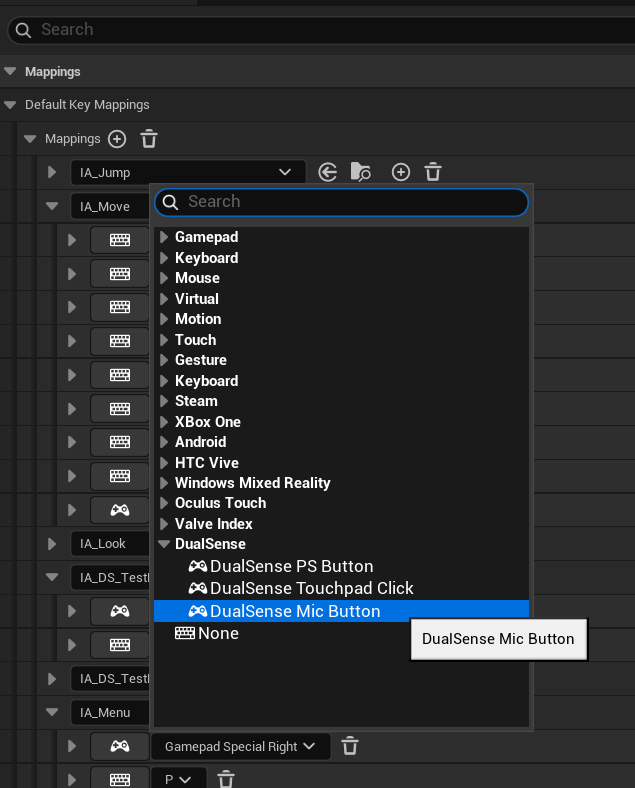
Buttons that a generic gamepad does not have get their own keys, in the DualSense category of the key picker. They are available from v2.1.
| DualSense | Unreal key | Name in C++ |
|---|---|---|
| PS button | DualSense PS Button | DualSense_PS |
| Touchpad click | DualSense Touchpad Click | DualSense_Touchpad |
| Mute button | DualSense Mic Button | DualSense_Mic |
Using Enhanced Input
Nothing special is needed: add the keys to an Input Mapping Context as you would for any gamepad, and add the context to the player with Add Mapping Context.
Create an Input Action
For example IA_Pause, with value type Digital (bool).
Map it
In your Input Mapping Context, add a mapping for IA_Pause and pick Gamepad Special Right (Options). Add a second mapping with the P key for keyboard players.
Handle it
In the Player Controller, add the EnhancedInputAction IA_Pause event and do your thing on Started.
The same works for the DualSense keys: a mapping on DualSense Touchpad Click opens a map, DualSense PS Button opens a pause menu, and so on.
Notes
- Stick dead zones are not applied by the plugin. Use Enhanced Input's Dead Zone modifier on the stick mappings, as you would for other gamepads.
- Triggers report both a digital key (pressed or not) and an analog axis from
0to1. Adaptive trigger effects do not change these values: an effect that blocks the trigger halfway simply keeps the axis below1. - Touch position, gyroscope, accelerometer and battery level are not exposed yet.
- With more than one controller, read Multiple controllers: in this version all controllers send input as the first player.